Setting up your pass
This is how your business appears when customers save you to their phone. Add your logo, cover photo, and a few brand details and you are ready to move on.
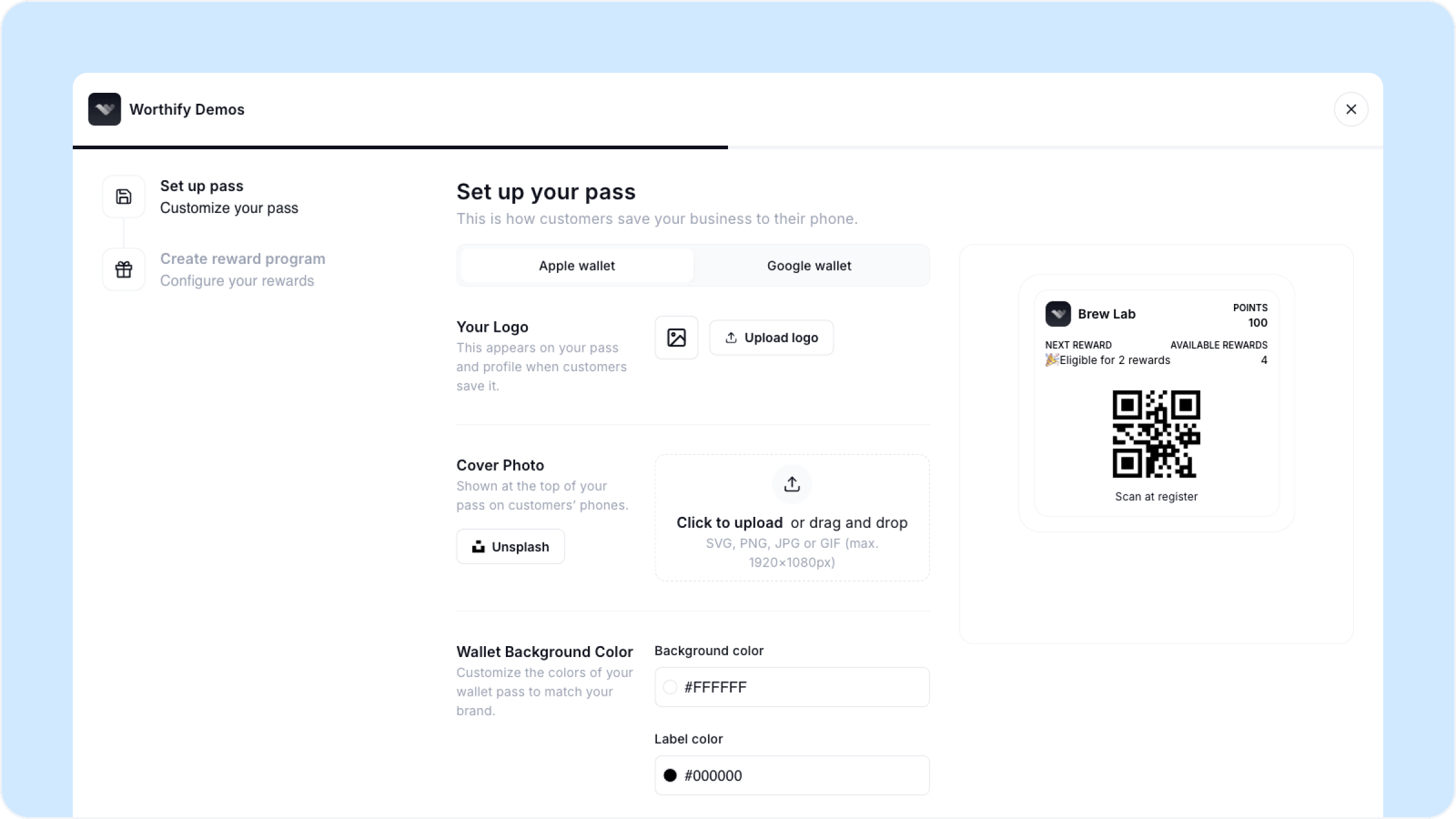
Overview
Your pass is what customers see in their Apple or Google Wallet after they scan your QR code. It carries your logo, your cover photo, and your brand colors. Setting it up takes a few minutes and you can always come back to update it from your dashboard.
To get started, go to your dashboard and click Set up your pass.
You can preview how your pass looks on both Apple and Google Wallet as you fill in each field. Toggle between the two at the top of the setup screen.
What you will fill in
Your Logo This appears on your pass and on your profile when customers save it. Upload a PNG, JPG, or GIF — high resolution works best.
Cover Photo Shown at the top of your pass on customers' phones. This is a great place to show your space, your products, or a seasonal look. Upload an SVG, PNG, JPG, or GIF up to 1920x1080px. You can also browse free photos directly from Unsplash inside the setup screen.
Wallet Background Color Sets the background color of your pass. You can enter a custom hex code or choose from the presets in your Branding settings. This also controls the label and foreground colors so the text on your pass stays readable.
Socials Link your Instagram, Facebook, or X account. These appear on your pass so customers can follow you directly from their wallet.
Website Add your business website URL. This will be displayed on your pass for customers who want to learn more or order online.
Once you hit Continue, your pass setup is marked complete and the rewards program step unlocks. You can skip any optional fields for now and come back to them later from Your pass, then Branding in your dashboard.
FAQs
Can I update my pass after it is live? Yes. Head to Your pass, then Branding in your dashboard to update your logo, cover photo, colors, socials, or website at any time.
What image size works best for the cover photo? 1920x1080px is the recommended size. The image will be cropped to fit the top of the pass so landscape images work best.
Do I need to add socials and a website? No, both are optional. You can add them now or come back to it later.