Using the scanner app
Use the Worthify Scanner app to quickly issue points, redeem rewards, and look up member activity at your location.
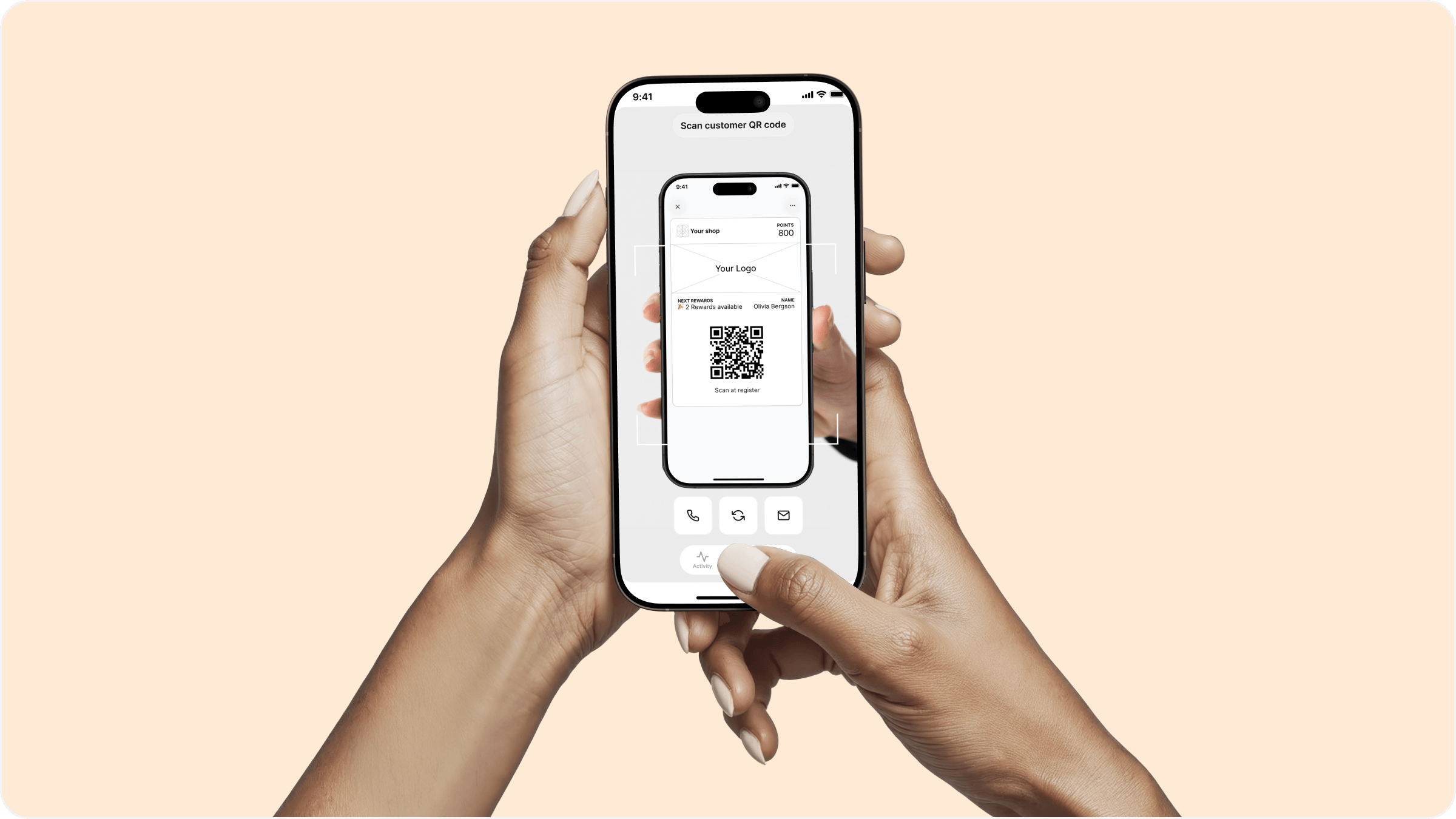
Overview
The scanner is how your team issues points and redeems rewards at the counter. It is a standalone app your staff download on any phone or tablet. No extra hardware needed — just a phone, the app, and your account credentials.
Downloading the app
Search for Worthify Rewards Scanner on the Apple App Store or Google Play Store and download it. Open the app and sign in with your Worthify account credentials.
Anyone on your team can use the scanner app depending on the permissions you have set for them. See the article on Staff usage and permissions for a full breakdown of access levels.
How to stamp points at checkout
Once you are signed in the scanner works in two ways:
Scan the customer's pass Ask the customer to open their Apple or Google Wallet and show their pass. Point the camera at their QR code and the app will pull up their profile instantly — showing their name, current points balance, and any rewards they have available.
Search for a customer manually If a customer does not have their pass handy you can search for them by email address or phone number directly in the app.
Once you have the customer pulled up:
Enter the purchase amount
The app calculates and issues points automatically
Hit confirm to complete the transaction
Make it a habit to scan every customer at checkout. Consistency is what builds the points balance that keeps customers coming back.
How to redeem a reward
If a customer has enough points to claim a reward it will show as available on their profile in the app. To redeem:
Pull up the customer by scanning their pass or searching by email or phone number
Tap the reward they want to redeem
Confirm the redemption
The reward is applied and their points balance updates automatically
The customer will receive a notification confirming their reward was redeemed.
Always check if a customer has a reward available before completing the transaction. It only takes a second and it is the kind of moment that makes customers feel genuinely valued.
FAQs
Does every staff member need their own login? Yes. Each team member signs in with their own credentials. Access levels are set by you from the Team section of your dashboard.
What if a customer does not have their pass open? Search for them by email or phone number in the app and pull up their profile manually.
Can the scanner app access all my locations? It depends on the team member's role. Admins see all locations, managers see only the location they are assigned to, and staff have scanner app access only with no dashboard access.
Can a customer redeem more than one reward at a time? One reward per transaction. If a customer has multiple rewards available they can choose which one to apply.
Do I need an internet connection to use the scanner? Yes, the scanner requires an active connection to issue points and redeem rewards in real time.
Is there a POS integration available? Yes. If you would like to connect Worthify to your POS system contact us and we can walk you through the integration options available for your setup.
Next steps
Staff usage and permissions
Ways customers can join your pass