Printing your counter flyer
Get your QR code in front of customers at your counter so they can scan and save your pass.

Overview
Your counter flyer is the simplest and most effective way to get customers onto your pass. Place it at your register and let it do the work — every customer who scans it saves your pass to their phone in seconds.
You can download a ready-to-print flyer with your branding already applied, or download just the QR code and drop it into your own design.
To get here, go to Your pass, then Branding, then the Print QR code tab.
Customizing your flyer
Before downloading, you can customize how your flyer looks:
Counter top title — The headline on your flyer, for example Join Our Rewards Program
Subtitle — Toggle on to add a second line of text below the headline
Font size, family, weight, and alignment — Style the text to match your brand
Template — Choose from four layouts: Gradient, Wave, Minimal, or Block
The preview on the right updates in real time as you make changes.
Printing with Canva (Optional)
If you want a more customized design using Canva, here’s how to do it:
Download the QR code only
Click the download icon → choose QR Code OnlyVisit canva.com and log in
Click “Create a design”
Choose a size like “Flyer,” “Poster,” or custom size (e.g. 5x7 in)Upload your QR code
Use the left sidebar → "Uploads"
Drag and drop your downloaded QR image
Design your print material
Add your shop logo, fonts, headlines, and colors
Write a short message like “Scan to Join & Start Earning Points”
Download or order prints directly from Canva
You can also visit Canva help centre for more articles.
Downloading your flyer
Once you are happy with how it looks, click the download icon in the bottom right of the preview. You will receive:
A print-ready flyer with your logo, QR code, and branding applied
A standalone QR code file you can use in your own materials
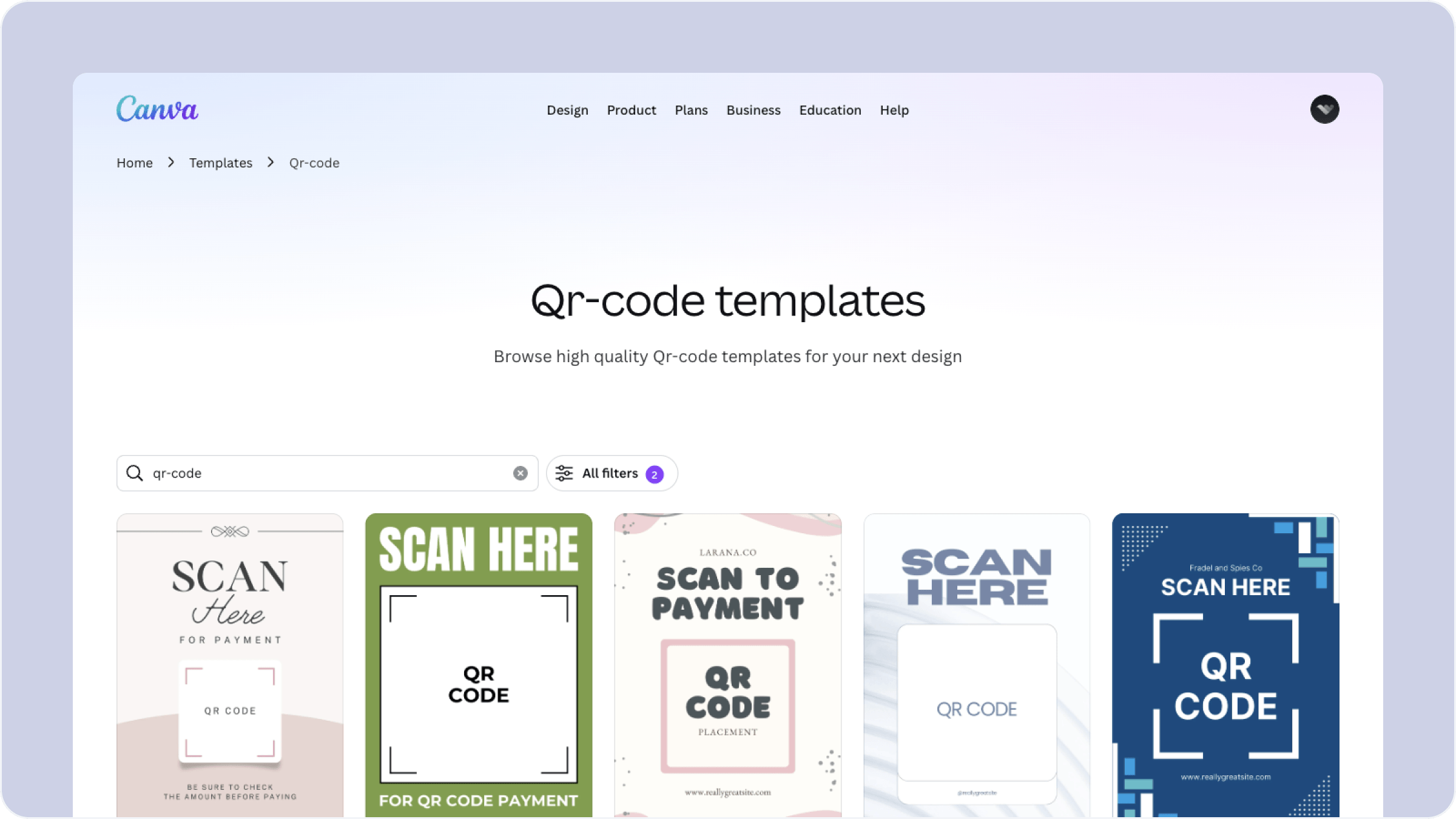
Want to build something more custom? Use the Canva link on the same page to access pre-built QR templates you can modify yourself. Or reach out to us through the Worthify link on the page and we can help with a custom design.
Where to place your flyer
Once printed, put it somewhere every customer will see it:
At your checkout counter or register
On tables or your front desk
Near your entrance or window
At your pickup area
The more visible it is the more customers will scan it.
FAQs
What file format will I receive? You will receive a print-ready flyer file and a standalone QR code image you can use in any design tool.
Can I use the QR code in my own designs? Yes. Download the standalone QR code and use it in Canva, your own print materials, or anywhere else you want to display it.
Do I need to reprint my flyer if I update my branding? If you change your logo or colors in the Branding section your flyer will reflect those changes the next time you download it. Previously printed flyers are not affected.
Is there a minimum print size for the QR code? For reliable scanning, print your QR code at least 2.5cm x 2.5cm. Larger is always better.
Next steps
Ways customers can join your pass
Setting up your scanner
Setting up your branding