Setting up your branding
Customize how your pass and QR code look across every customer touchpoint.
Got it, I have everything I need. Here it is:
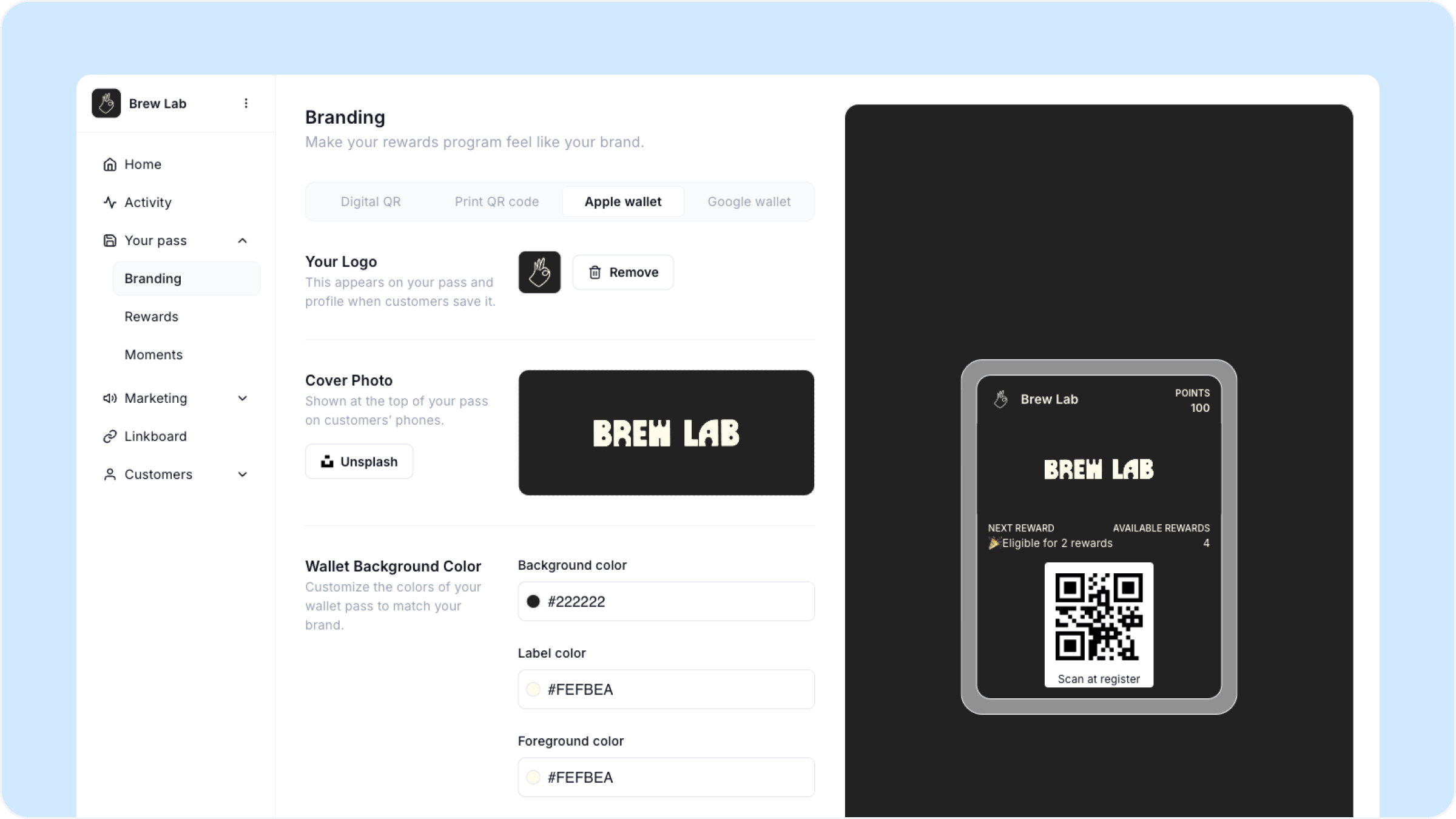
Overview
The Branding section is where you refine how your business looks across four surfaces: your Digital QR display, your printed counter flyer, your Apple Wallet pass, and your Google Wallet pass. Changes you make here update in real time in the preview on the right side of the screen.
To get here, go to Your pass, then Branding in your dashboard.
Sections
Digital QR This is the screen customers see when they scan your QR code before saving your pass. It shows your logo, background color, and your rewards program headline. Use this if you want to display your QR on an in-store TV, tablet, or any digital screen.
Print QR code This is your counter flyer — the physical sign you place at your register. Customize it here and download a print-ready file to take to a printer or print yourself.
Apple & Google Wallet Preview and adjust how your pass looks when saved to an iPhone. Your logo, cover photo, background color, label color, and foreground color all apply here.
Customizing your pass
Across all four tabs you can update:
Logo — Appears on your pass and your customer-facing profile
Cover photo — Shown at the top of the saved pass on customers' phones
Background color — Choose from presets or enter a custom hex code
Label and foreground colors — Controls the text colors on your pass
Socials — Link your Instagram, Facebook, or X account
Website — Add your business URL
Customizing your counter flyer
On the Print QR code tab you can also customize:
Counter top title — The headline customers see on your flyer, for example Join Our Rewards Program
Subtitle — Toggle on to add a second line of text
Font size, family, weight, and alignment — Style your headline to match your brand
Template — Choose from four layouts: Gradient, Wave, Minimal, or Block
Once you are happy with how it looks, hit the download button in the bottom right of the preview to save a print-ready file.
Want something more custom? You can use the Canva QR template library directly from this page to build your own design around your QR code. Or contact us through the Worthify link on the same page and we can help with a custom design.
FAQs
Do changes to branding affect customers who already saved my pass? Yes. Updates to your logo, cover photo, and colors reflect on all existing passes automatically.
Can I use my own design for the counter flyer? Yes. Download your QR code from the Print QR code tab and drop it into any design tool including Canva.
Which tab should I focus on first? Start with the Print QR code tab so you can get your counter flyer ready. The wallet pass tabs are worth reviewing but your logo and cover photo from the pass setup already carry over automatically.
Next steps
Printing your counter flyer
Setting up Reward Moments
Setting up your scanner