Transactions POS sync
Cross-reference your Worthify transactions against your POS data to catch anything that does not add up.
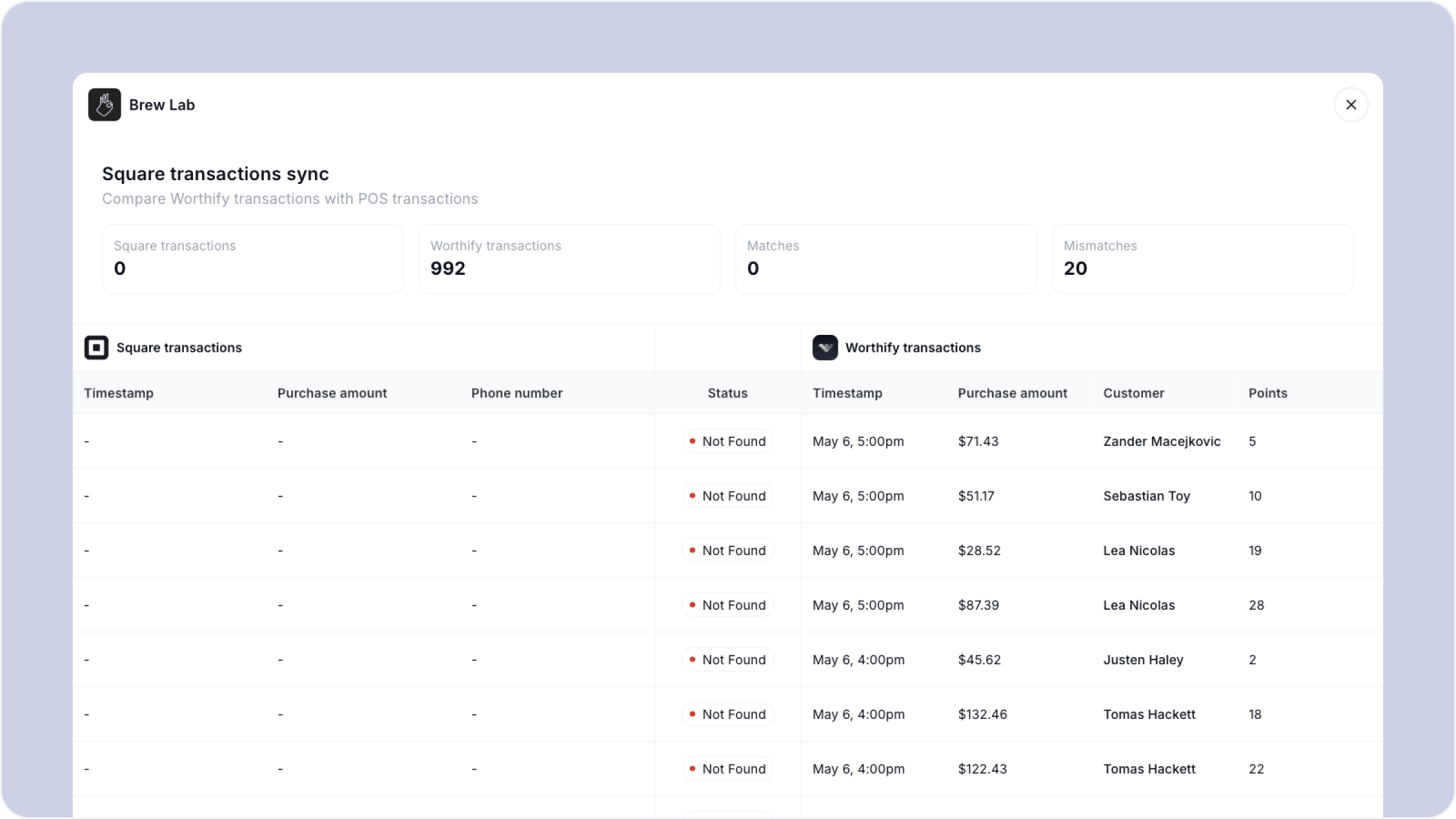
Overview
POS sync pulls your Square or Clover transaction data into Worthify and compares it against your Worthify activity log. Transactions that match on both systems are confirmed automatically. Anything that looks off — a timestamp match but a different order value, for example — gets flagged as a mismatch so you can investigate.
To get here, go to Activity in your dashboard and click Sync POS data.
To use POS sync you need to have connected your Square or Clover account under Integrations first. See the Square integration and Clover integration articles for setup instructions.
How it works
Once you trigger a sync Worthify pulls your latest POS transactions and lines them up against your Worthify transactions side by side. Each transaction is then given a status:
Match The transaction exists in both systems and the key details align — timestamp and purchase amount are consistent. No action needed.
Mismatch The transaction appears in both systems but something does not line up. For example your POS shows a transaction at 1:00pm for $40 and Worthify has a points-issued transaction at the same time but for $43. This could mean the wrong purchase amount was entered at the scanner, or a transaction was processed incorrectly.
Not found The transaction exists in one system but not the other. This could mean a customer was not scanned at checkout, or a transaction was processed in Worthify without a corresponding POS sale.
What the sync table shows
The table is split into two sides — your POS transactions on the left and your Worthify transactions on the right — so you can compare them directly.
For each transaction you can see:
Timestamp — when the transaction occurred
Purchase amount — the order value recorded
Phone number — the customer associated with the transaction on the Worthify side
Customer — the customer name on the Worthify side
Points — how many points were issued
Status — match, mismatch, or not found
What to do with mismatches
A mismatch is not necessarily a problem — it could be a rounding difference, a discount applied at POS that was not reflected in the Worthify entry, or a manual adjustment. But it is worth reviewing each one to make sure points are being issued accurately.
If you find a pattern of mismatches from a specific staff member or time period, cross-reference with your activity log to investigate further.
Run a POS sync at the end of each week as a routine check. Catching discrepancies early is much easier than trying to reconcile months of transactions at once.
FAQs
How often should I sync? There is no set requirement but a weekly sync is a good habit. You can trigger a sync manually anytime from the Activity page.
Does syncing change any data in Worthify? No. The sync is read-only — it compares data and flags discrepancies but does not automatically correct anything. Any adjustments need to be made manually or through our support team.
What if most of my transactions show as not found? This usually means your POS integration is not fully connected or your staff are not scanning customers consistently at checkout. Check your integration settings and make sure your team is scanning every transaction.
Which POS systems are supported? Currently Square and Clover. If you use a different POS system contact us and we will let you know what is on the roadmap.
Can I export the sync report? Contact our support team if you need to export your POS sync data.